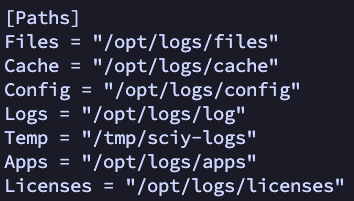
The following table lists the standard locations used to store analytical research data after ingestion:
| Typical size | Location on Ubuntu 24 | Location on Windows | |
|---|---|---|---|
| Ingested data storage (compressed) | 1000 GB | /opt/logs/files | C:\ProgramData\LOGS Core Engine\files |
| Cache for faster data preview | 700 GB (0.7 x data) | /opt/logs/cache | C:\ProgramData\LOGS Core Engine\cache |
| Metadata in PostreSQL DB | 25 GB (0.025 x data) |
/var/lib/postgresql/18/main/ | C:\Program Files\PostgreSQL\18\data |
The individual directories used by the LOGS Core Engine can be customized if needed by adjustig the values in the config file:
Windows (C:\ProgramData\LOGS Core Engine\logs-config.toml):
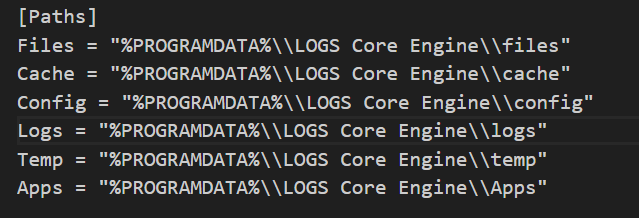
For a cleaner Windows setup, we recommend creating a dedicated partition and assigning it a fixed drive letter, for example L:. After the installation has completed using the default paths, create a new folder on the dedicated partition, for example: L:\LOGS Core Engine Data.
Then move all subfolders except the config folder from:
C:\ProgramData\LOGS Core Engine
to the new folder on the dedicated partition. The resulting structure should look similar to this:
L:\LOGS Core Engine Data\files
L:\LOGS Core Engine Data\cache
L:\LOGS Core Engine Data\temp
L:\LOGS Core Engine Data\logs
L:\LOGS Core Engine Data\Apps
Make sure the config folder remains in its original location:
C:\ProgramData\LOGS Core Engine\config
Next, open the logs-config.toml file as an Administrator in a text editor and update the corresponding path entries for Files, Cache, Logs, Temp, and Apps. Do not change the path for Config.
Linux (/opt/logs/logs-config.toml):