


 1
1
The Table of Content (ToC) provides a structured overview of the entire notebook and enables quick navigation across notebooks, experiments, and entries.
Notebook Structure Overview
The ToC reflects the hierarchical structure of the notebook and displays:
- Notebooks
- Experiments
- Entries (daily notes)
Each level can be expanded or collapsed independently to focus on the relevant content. You can navigate directly between entries by selecting them from the list.
Search and Filter Options
The search bar allows you to quickly find content within a notebook.
Search Function
The search scans the following elements:
- Names of notebooks, experiments, and entries
- Headings within entries
- Names of inserted entities (e.g. datasets, samples)
This makes it easy to locate specific content, even in large notebooks.
Filter Options
Additional filter options are available by clicking the Filter icon. You can refine the displayed content by:
- Selecting a specific experiment from a dropdown list
- Filtering by record information, such as: modifying person and event dates and ranges
- Filtering by locking and signature status, including: modifiying person and event dates and reanges
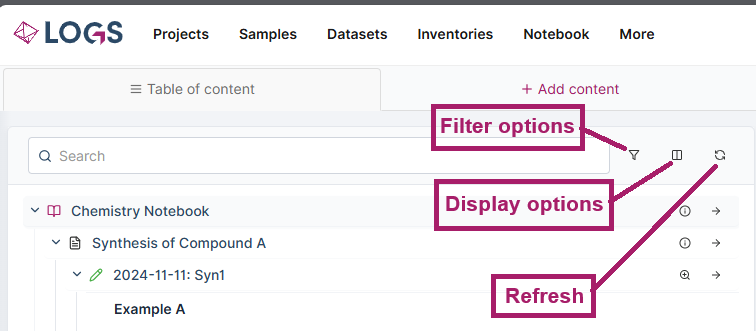
Display Options
The ToC offers variabla display capabilities to reduce visual complexity and highlight relevant content.
- Grouping optional per Experiment, Entry or both
Show or hide
- heading levels
- Special elements and boxes (e.g. Info, Warning, Timer)
- Linked Datasets, Samples, People, Projects, Inventories
These options allow you to adapt the ToC layout to your preferred level of detail.
Refresh ToC
The Refresh button resets the Table of Content to the default view. This is useful if the ToC becomes out of sync after extensive editing or filtering.
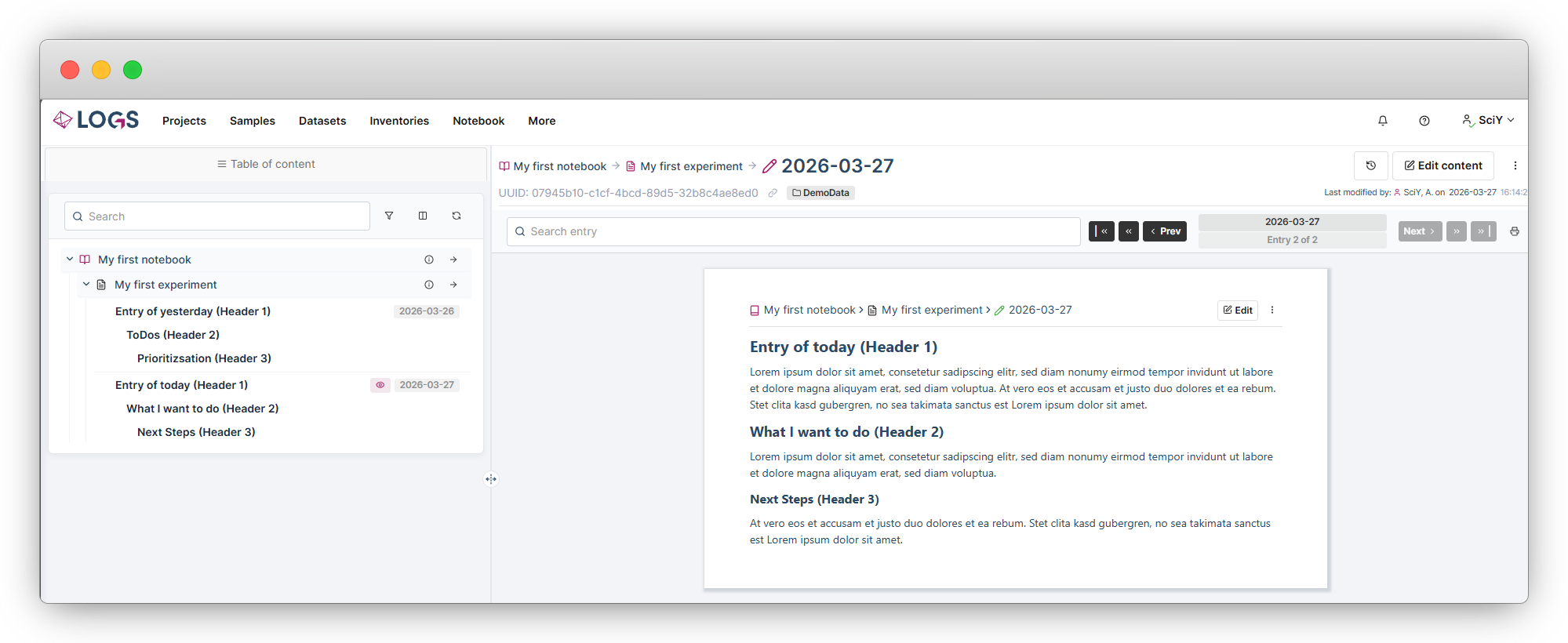
Default view of ToC: grouped by experiments and Entries, Headers displayed.

