


Two-Factor-Authentication (2FA)

Mar 02, 2026
 4
4
How to set up Two‑Factor Authentication (2FA)
- Log in to your account
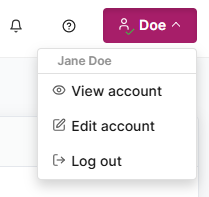
- After logging in, go to your account settings:
- Click your name in the upper‑right corner
- Select “Edit account”
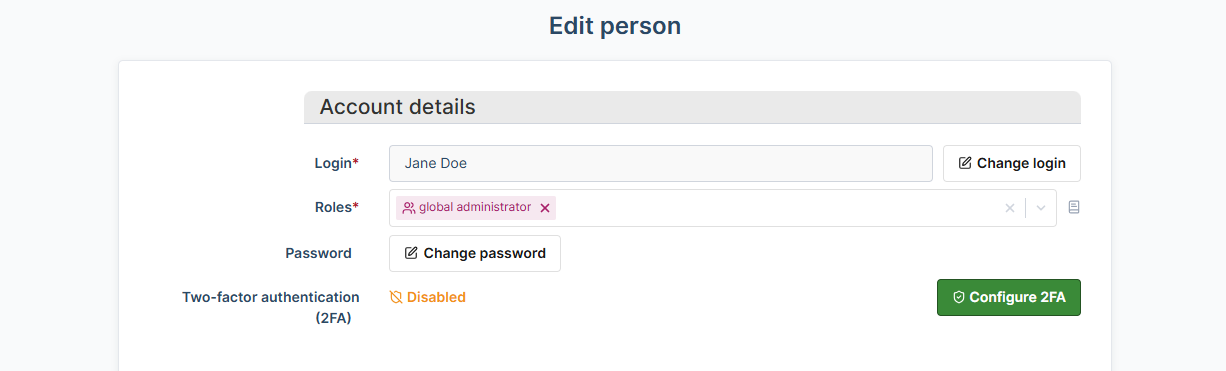
- Start the 2FA setup
- Click on “Configure 2FA”.
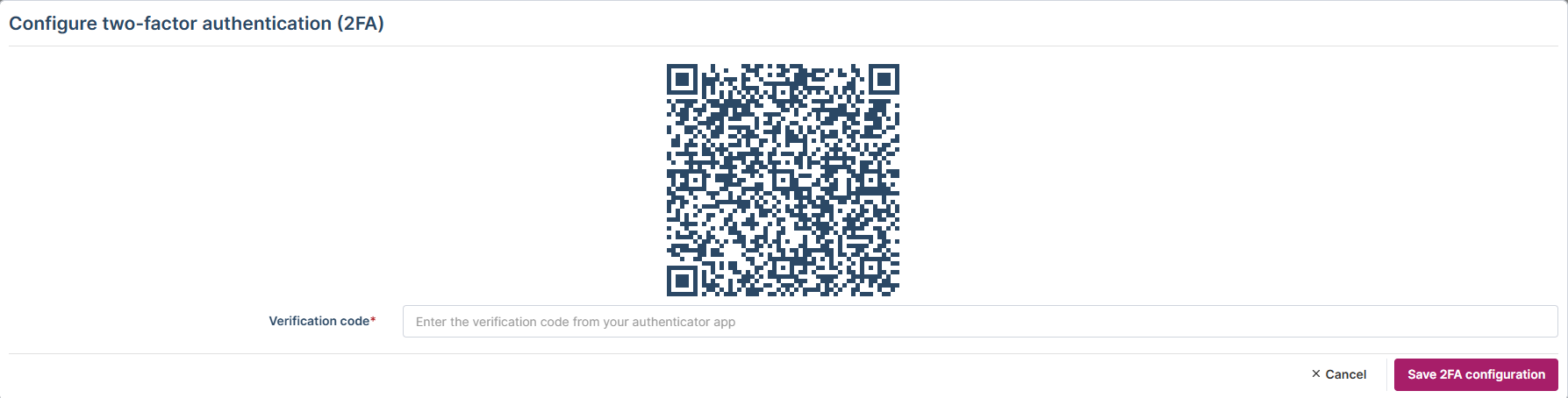
- Scan the QR code
- Open your preferred authentication app (e.g., Google Authenticator, Microsoft Authenticator).
- Scan the displayed QR code.
- Enter the generated code into the input field on the page.
- Verify activation
- After saving, double‑check that 2FA is shown as enabled in your account settings.

