502
502
This guide explains how to set up and use the Mnova Hub – LOGS Connector to access datasets from LOGS directly in Mnova for processing and analysis. The connector enables a seamless workflow between LOGS and Mnova: raw measurement data is first stored in LOGS, then opened in Mnova for processing, and finally reuploaded to LOGS as processed datasets. This ensures that all data remains traceable, structured, and accessible.
System Requirements
To use the Mnova Hub – LOGS Connector, ensure the following components are installed and available:
- Mnova >=16.0.0
- Mnova Hub plug-in v1.1.0.16950 (or higher) for LOGS <= 3.1
- Mnova Hub plug-in v1.2.0.19414 (or higher) for LOGS >= 3.2
- Mnova Hub – LOGS license file
- issued per user unless a site license or license server is in place
- for site licenses, the server must be restarted after uploading the license
- LOGS v3.0 or higher
Important: In LOGS 3.2 (or higher), datasets can only be searched via name and date. Only custom field from the custom type "Mnova Hub Dataset" will be available for searching via Mnova Hub. This dataset type can be installed in LOGS via More -> Customization ->Templates -> Browse Custom Type Templates.
Installation and Setup
Install the Mnova Hub plug-in
- Drag and drop the plug-in file into Mnova. Confirm activation via: File:Advanced Plug-ins:Installed.
- If Mnova Hub is not listed, go to the Available tab, locate Mnova Hub, and click Install. Restart Mnova after installation.
- Generate Your LOGS API Key
- Each LOGS user must generate their own API key to ensure that Mnova Hub reflects the correct access permissions. This step must be completed by the user.
Activate Custom Dataset Type "Mnova Hub Dataset" from Templates
When using LOGS version 3.2 and higher the custom dataset type "Mnova Hub Dataset" must be used. You can find this dataset type in the templates.
Only admins can activate this type under More:templates. Ensure all datasets intended for Mnova (via Mnova Hub) use this type.
Note: Changes to the dataset type template will not be reflected in Mnova Hub.
Connect Mnova Hub to LOGS
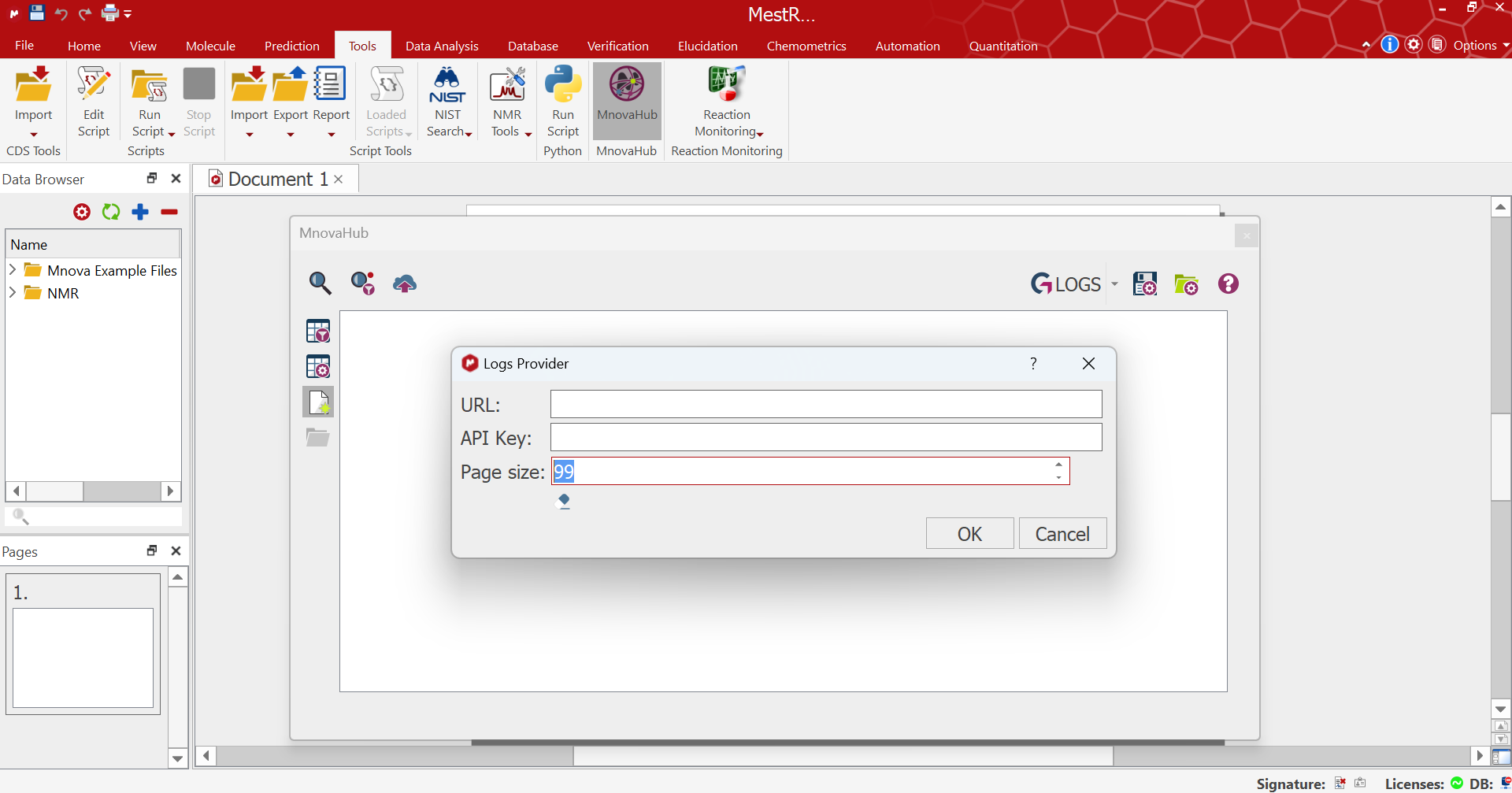
- In Mnova, go to Tools:MnovaHub and select the LOGS option from the dropdown menu in the upper right.
- In the LOGS interface, copy the Mnova Hub integration URL and paste it into the URL field in Mnova Hub.
- Copy the API Key and paste it into the API Key field in Mnova Hub.
- Click OK to complete the connection.
Once configured, the Mnova Hub – LOGS connector is ready for use.
Accessing LOGS Datasets via Mnova Hub
To view datasets
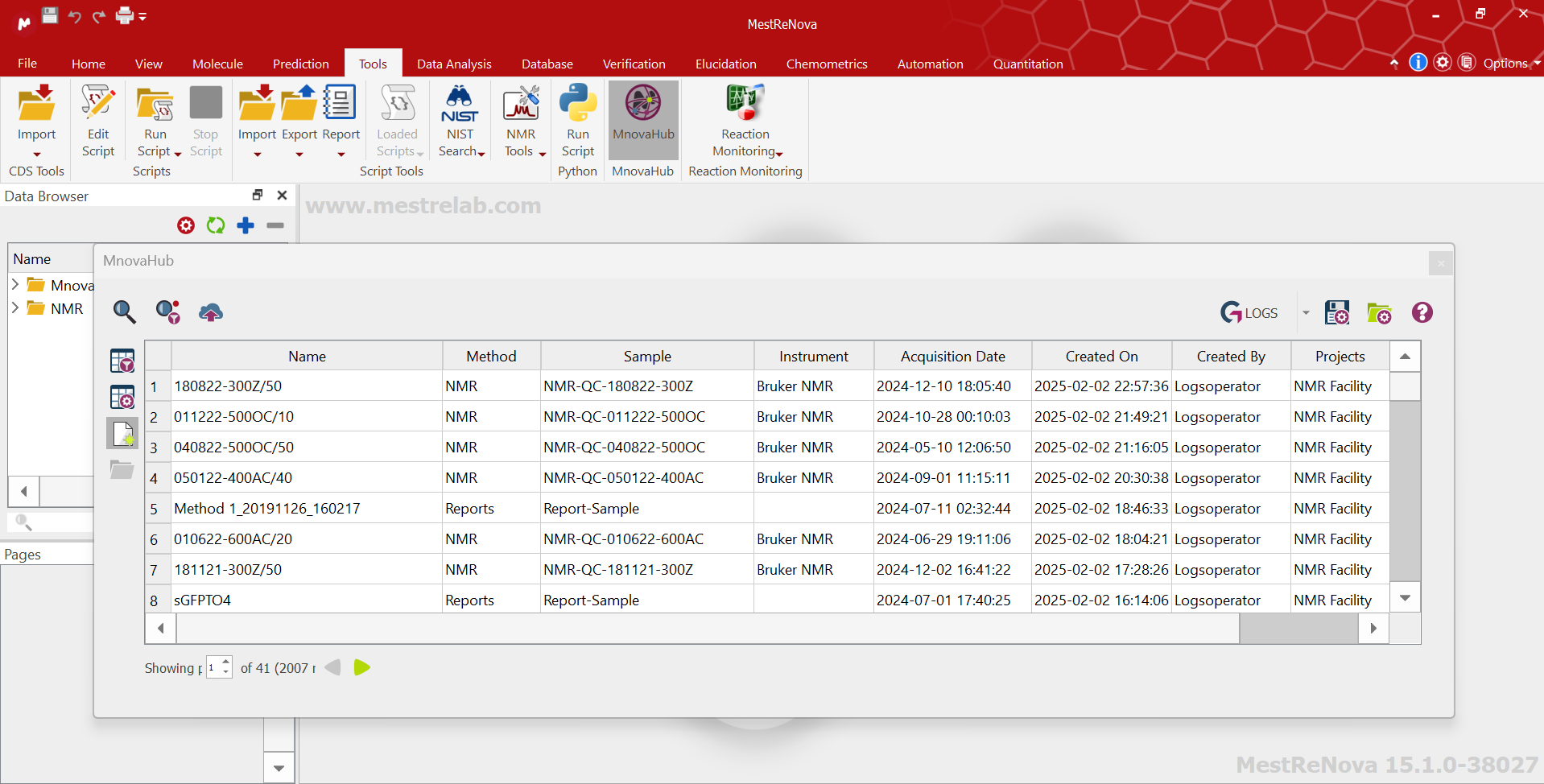
- Open Mnova Hub and click the Search icon.
- All accessible LOGS datasets will be displayed.
- If any saved searches are active, filters will be applied automatically.
- Sort results by clicking on column headers (e.g., sort by Acquisition Date to view datasets from newest to oldest).
- Double-click a dataset to open it.
Once a dataset is opened, you can use the full range of Mnova’s processing and analysis tools to work with the spectrum—just as you would with any locally stored data.
Using Saved Searches to Filter Datasets
To filter datasets effectively:
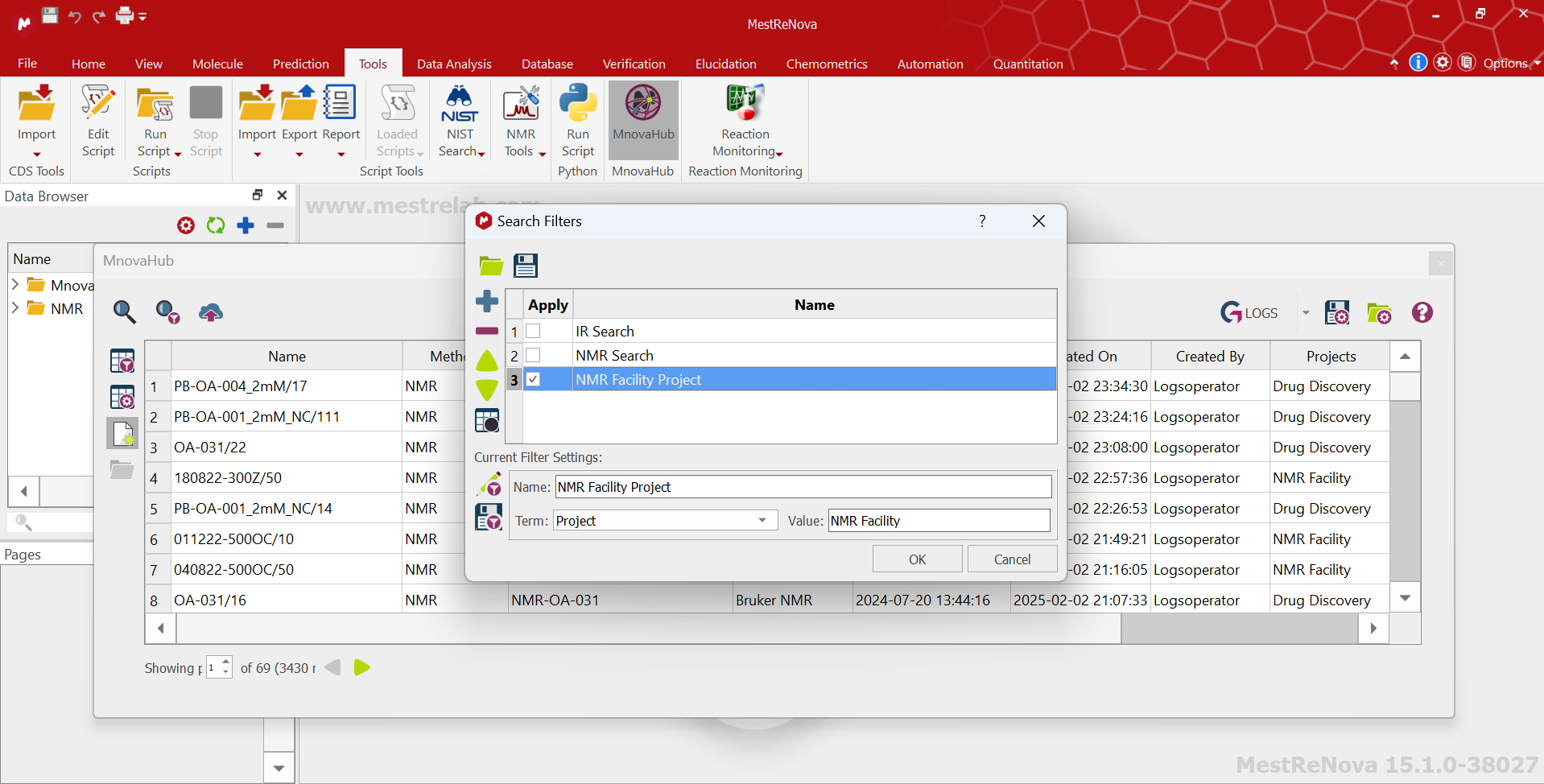
- Create a Saved Search in Mnova Hub.
- Ensure the desired saved search is checked (active).
- Click the Search icon to apply the filter.
- When a saved search is active, a red dot appears next to the Saved Search icon.
- The filter remains active until manually deactivated.
Click on the Video below to see LOGS and Mnova Hub in action: