


The Bridge Client is designed to push data from your instruments to LOGS-SDMS. You can download the LOGS-Bridge Client from within LOGS-SDMS, under More:Data Import:Bridges:+ Add Bridge.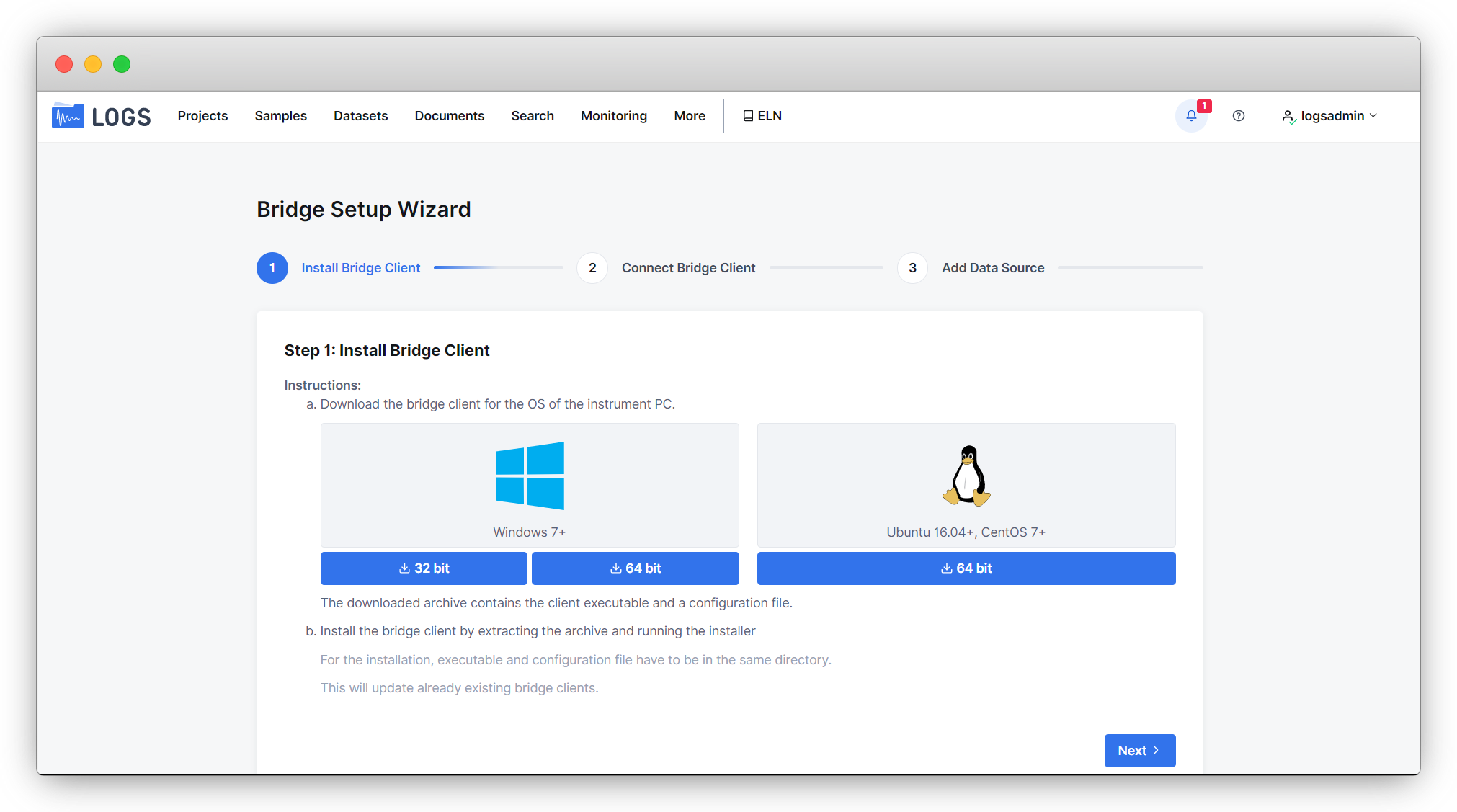
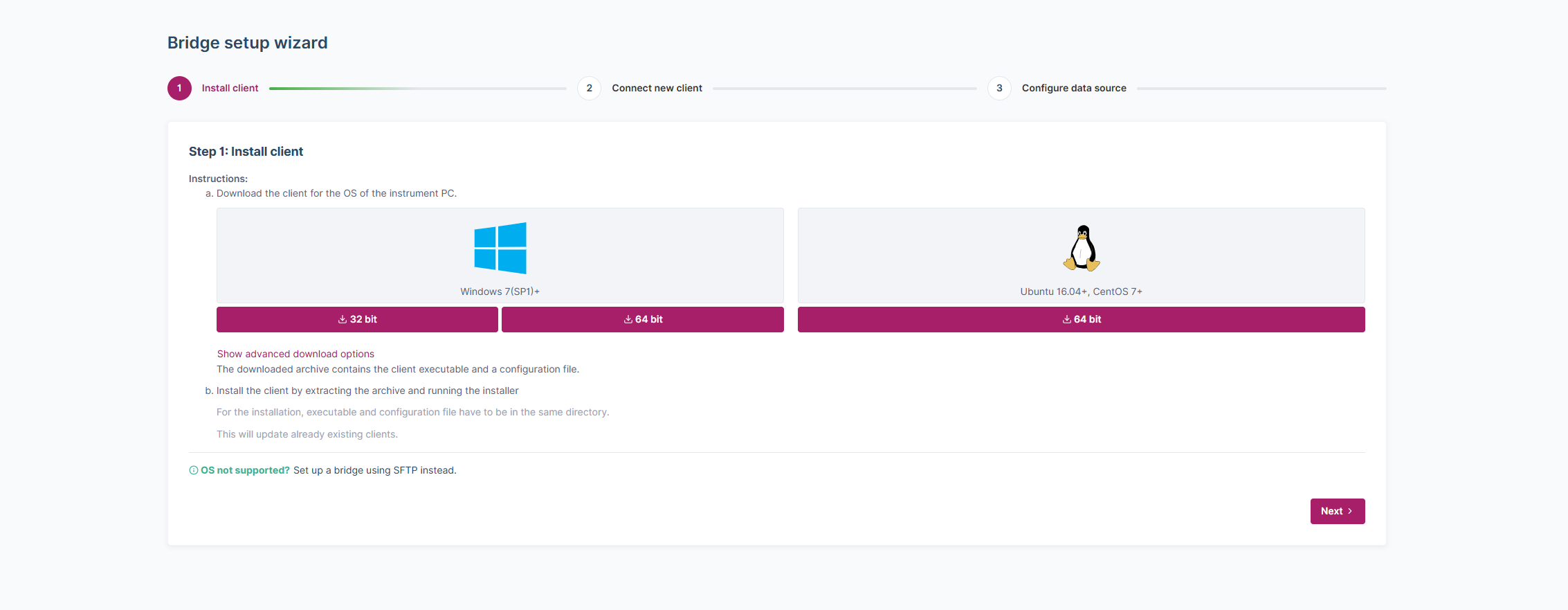
Install and connect the Bridge Client
- Download the Data Bridge Client
-
Download the appropriate version of the Bridge Client for the operating system of your instrument PC. The downloaded archive will contain the client executable and a configuration file.
-
- Install the Data Bridge Client on Windows
-
Extract the contents of the downloaded archive.
- Run the installer to install the Bridge Client. During installation, ensure that the executable file and the configuration file are located in the same directory.
- Upon successful installation, a terminal window will appear with a confirmation message. Close the terminal by pressing any key.
- After installation, the client runs as a Windows service and starts automatically on system boot.
-
-
Install the Data Bridge Client on Linux
- Navigate to the Download folder
cd Downloads - Unpack the downloaded archive
unzip LOGS-Bridge*.zip - Navigate to the extracted directory
cd LOGS-Bridge* - Make the client executable
chmod u+x logs-autoload-client-*-linux Start client with root permissionssudo ./logs-autoload-client-*-linux
- Navigate to the Download folder
- Connect the Bridge Client
-
If the installation is successful, select Next in the LOGS Bridge Setup Wizard.
-
For security reasons, the newly installed Bridge must be approved within LOGS. During approval, the Bridge will be signed and a bearer token will be added to the
client main-config.tomlfile. - A green "connected" tag will appear if the connection is successful.
- Click on Configure Data Source to customize the data upload settings.
-
Restart Clients
If you encounter issues with the client, restarting it may help resolve the problem.
On Windows: Open Services, select the LOGS Data Bridge Clien, right-click and select Restart or just restart your PC.
On Linux: Use the following command: sudo service logs-autoload-client restart
Deinstallation
Windows
- Open Windows Settings and go to Apps → Installed apps (or Apps & Features, depending on Windows version).
- Search for LOGS Client in the list.
- Select the LOGS Client entry and choose Uninstall.
- Important: Restart the computer to ensure all services are fully stopped and removed.
- After restart you can confirm correct deinstallation
- under C:\program files check if there is no LOGS Autoload folder
- under Services check if there is no LOGS Autoload Client service running
Linux
-
You will find the installed client executable at “/opt/logs-autoload-client"
-
The client can be uninstalled executing
/opt/logs-autoload-client/logs-autoload-client-2.0.9-linux uninstall -
You can confirm correct deinstallation
- if the /opt/logs-autoload-client folder was removed
Adding and Configuring Data Sources
- Add a Data Source
- Navigate to More > Data Import > Data Sources and click Add Data Source.
- Select the Bridge for which you want to add the data source.
- Configure a Data Source
- Choose the data format of the data you wish to upload. If your instrument PC contains multiple data formats, you will need to add additional data sources, one for each format.
- Select the directory containing your data. Subdirectories will also be included.
- You can select a metadata mapping template from the list or create a custom mapping scheme (see Metadata Mapping - LOGS for more information).
- The default upload interval is set to 15 minutes. Adjust the upload interval to match your measurement times.
- Set the cut-off date to ensure only newer data is uploaded.

